Components
Every entity has a list of components that define what the entity is, how it looks and how it behaves.
Create a new component
Stride allows you to create your own components with scripts. For more information, visit Scripts.
Add a component in Game Studio
Select an entity in the Entity tree. This will make your entity's components show up in the Property grid.
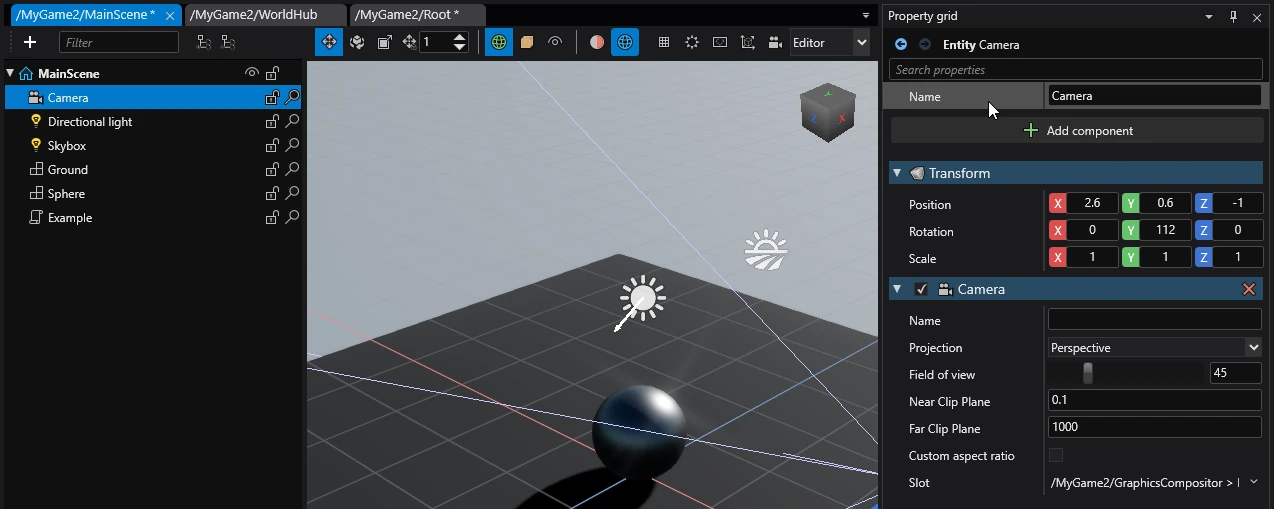
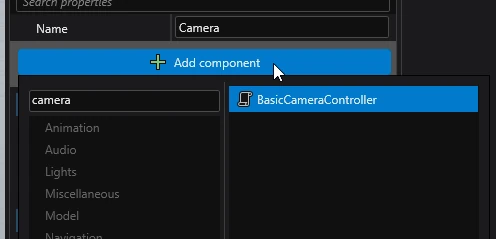
Press the ➕ Add component button located at the top and select a component.
Manage components in code
When coding in Stride, you are given full control over components in entities.
To add a component use Entity.Add.
var myComponent = new MyComponent();
Entity.Add(myComponent);
To get a component use Entity.Get, Entity.GetAll or Entity.GetOrCreate.
// Get a single component
var component = Entity.Get<MyComponent>();
// Get all components
var component = Entity.GetAll<MyComponent>();
// Add a new component if it doesn't exist and then get it
var component = Entity.GetOrCreate<MyComponent>();
Warning
It's recommended to avoid getting components directly through code and instead, creating a property to assign them in the Property grid. For more information, visit Best practices.
You can iterate over all components of an entity.
foreach (var item in Entity)
{
    if (item is MyComponent component)
    {
        // Your code here
    }
}
You can access or modify properties and fields or call methods of any component.
component.SomeProperty = "New value";
component.DoSomething();
To remove a component, use Entity.Remove or Entity.RemoveAll.
// Remove a specific component
Entity.Remove(component);
// Remove the first component of type
Entity.Remove<MyComponent>();
// Remove all component of type
Entity.RemoveAll<MyComponent>();