Asset view
The Asset view panel allows you to explore the contents of a folder. It's typically used in conjunction with the Solution explorer.
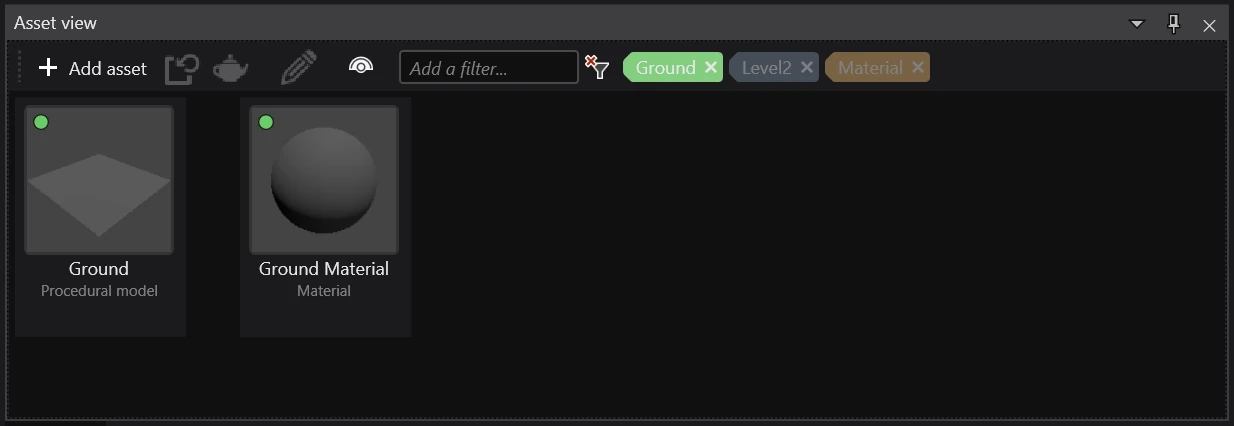
View asset compilation status
Every asset has a small colored dot in the top left corner. It displays its asset compilation status (i.e. if it will be included in the build or not).
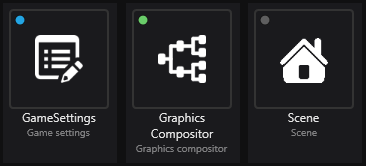
Each color has a different meaning:
- 🔵 Blue (will be compiled) - this asset is marked as root, meaning that it will always be compiled in the game no matter if it's referenced or not.
- 🟢 Green (will be compiled) - this asset is referenced by another asset that is used in the game, meaning that it will be compiled.
- 🟡 Yellow (will be compiled) - this asset will be included in the build, but its contents will be replaced by another asset. For more information, visit Replacement assets.
- ⚫ Gray (won't be compiled) - this asset isn't referenced by any other asset that's used in the game, meaning that it won't be compiled.
Filter assets
Filters allow you to toggle visibility of certain assets based on some criteria (e.g. tag).
You can add filters using the Add a filter... field at the top of the toolbar.
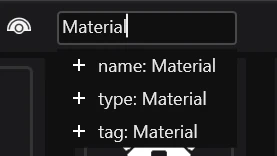
While typing, you will get suggestions that begin with a prefix:
- name: - filters assets based on their name.
- tag: - filters assets based on their tag.
- type: - filters assets based on their type.
Note
You can't type the prefixes in the field! They have to be manually selected using the mouse.
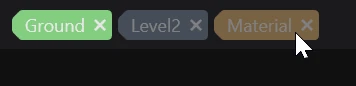
Filters can be toggled by clicking on them.