Configurations
Systems in Stride separate their settings into configurations. Most need to be added to the game settings asset manually. If a configuration doesn't exist while the game is running, Stride will create a blank one and add it.
You can add a configuration by pressing ➕ Add configuration and selecting the type of configuration which you want to add.
Create your own configuration
You can create your own configuration by inheriting from the Configuration class.
public class ProjectConfiguration : Configuration
{
    public bool MyProperty { get; set; }
}
Note
You may have to reload Game Studio in order for the configuration to become available in the Property grid.
Access a configuration in code
To access a configuration in code, use GameSettings.GetOrCreateConfiguration<T>, where T is the type of configuration that you want to get ahold of.
var gameSettings = Services.GetService<IGameSettingsService>().Settings;
var audioConfiguration = gameSettings.GetOrCreateConfiguration<AudioConfiguration>();
Note
If a configuration doesn't exist (hasn't been added in Game Studio), the method will add a new instance of it to the list and return it.
Built-in configurations
Here's a quick overview of the configurations that are included with Stride. For detailed information, consider visiting the corresponding system's section in the manual.
Audio

| Property | Description |
|---|---|
| HRTF (if available) | Should the project use head-related transfer function audio. For more information about this setting, visit HRTF. |
For more information about audio, visit Audio.
Bepu
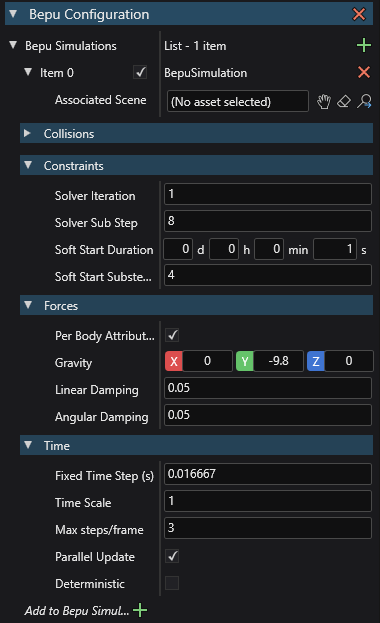
| Property | Description |
|---|---|
| Simulations | A list of simulations used by the physics engine. For more information about simulations, visit Simulation. |
For more information about Bepu physics, visit Physics.
Editor
The editor configuration controls how Game Studio displays entities in the Scene editor. These settings have no effect on your game.
Note
How Game Studio displays entities is also affected by the Color space setting under Rendering.
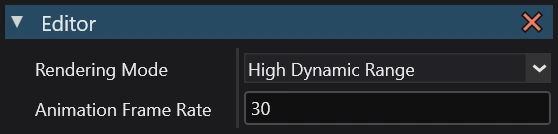
| Property | Description |
|---|---|
| Rendering mode | How Game Studio renders thumbnails and asset previews. |
| Animation framerate | The framerate of animations shown in Game Studio. This doesn't affect animation data. |
Navigation
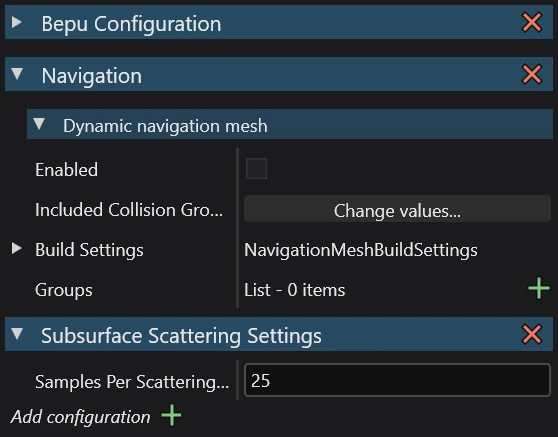
Dynamic navigation mesh properties
| Property | Description |
|---|---|
| Enabled | Enable dynamic navigation on navigation components that have no assigned navigation mesh. |
| Included collision groups | Set which collision groups dynamically-generated navigation meshes use. By default, meshes use all collision groups. |
| Build settings | Advanced settings for dynamically-generated navigation meshes. |
For more details, see Dynamic navigation.
Navigation group properties
| Property | Description |
|---|---|
| Item | The name of the group. |
| Height | The height of the entities in this group. Entities can't enter areas with ceilings lower than this value. |
| Maximum climb height | The maximum height that entities in this group can climb. |
| Maximum slope | The maximum incline (in degrees) that entities in this group can climb. Entities can't go up or down slopes higher than this value. |
| Radius | The larger this value, the larger the area of the navigation mesh entities use. Entities can't pass through gaps of less than twice the radius. |
For more details, see Navigation.
Physics
Note
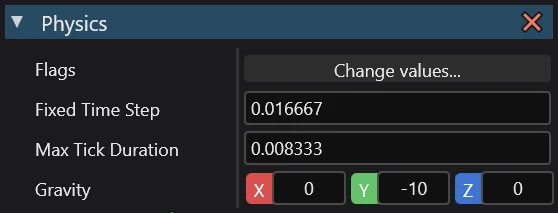
This configuration is for Bullet physics, which is being phazed out. We recommend switching to the new Bepu physics.
| Property | Description |
|---|---|
| Flags | CollisionsOnly disables physics except for collisions. For example, if this is enabled, objects aren't moved by gravity, but will still collide if you move them manually. ContinuousCollisionDetection prevents fast-moving entities erroneously moving through other entities. Note: other flags listed here currently aren't enabled in Stride. |
| Fixed Time Step | The length in seconds of a physics simulation frame. The default is 0.016667 (one sixtieth of a second). |
| Max Tick Duration | The maximum duration of a single physics tick. |
| Gravity | The gravity vector. By default it's using an approximation of the real-world gravity. |
Rendering
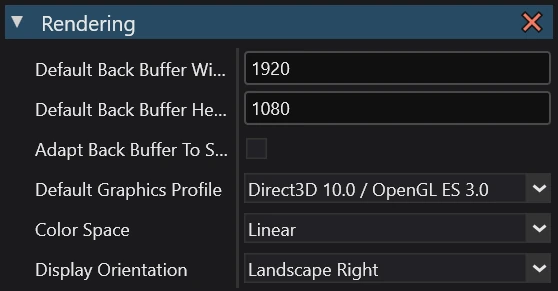
| Property | Description |
|---|---|
| Default Back Buffer Width | The default resolution width. This might be overridden depending on the device. |
| Default Back Buffer Height | The default resolution height. This might be overridden depending on the device. |
| Adapt Back Buffer To Screen | Determines if Stride should preserve the aspect ratio of the default back buffer, in case it needs to be resized to support the device (e.g. when the back buffer resolution is larger than the screen). |
| Default Graphics Profile | The graphics feature level required by the project. |
| Color Space | The color space (gamma or linear) used for rendering. This affects the game at runtime and how elements are displayed in Game Studio. |
| Display Orientation | The display orientation of the game (used by mobile platforms). |
Streaming
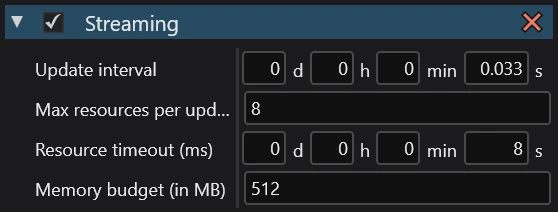
| Property | Description |
|---|---|
| Streaming | Enable streaming. |
| Update interval | How frequently Stride updates the streaming. Smaller intervals mean the streaming system reacts faster, but use more CPU and cause more memory fluctuations. |
| Max resources per update | The maximum number of textures loaded or unloaded per streaming update. Higher numbers reduce pop-in but might slow down the framerate. |
| Resource timeout (ms) | How long resources stay loaded after they're no longer used (when the memory budget is exceeded). |
| Memory budget (in MB) | When the memory used by streaming exceeds this budget, Stride unloads unused textures. You can increase this to keep more textures loaded when you have memory to spare, and vice versa. |
Note
Currently, only textures can be streamed.
For more details, see Streaming.
Textures

| Property | Description |
|---|---|
| Texture quality | The texture quality when encoding textures. Fast uses the least CPU, but has the lowest quality. Best might result in slower builds, depending on the target platform. |